Frequently Asked Questions
How to Submit a Paper
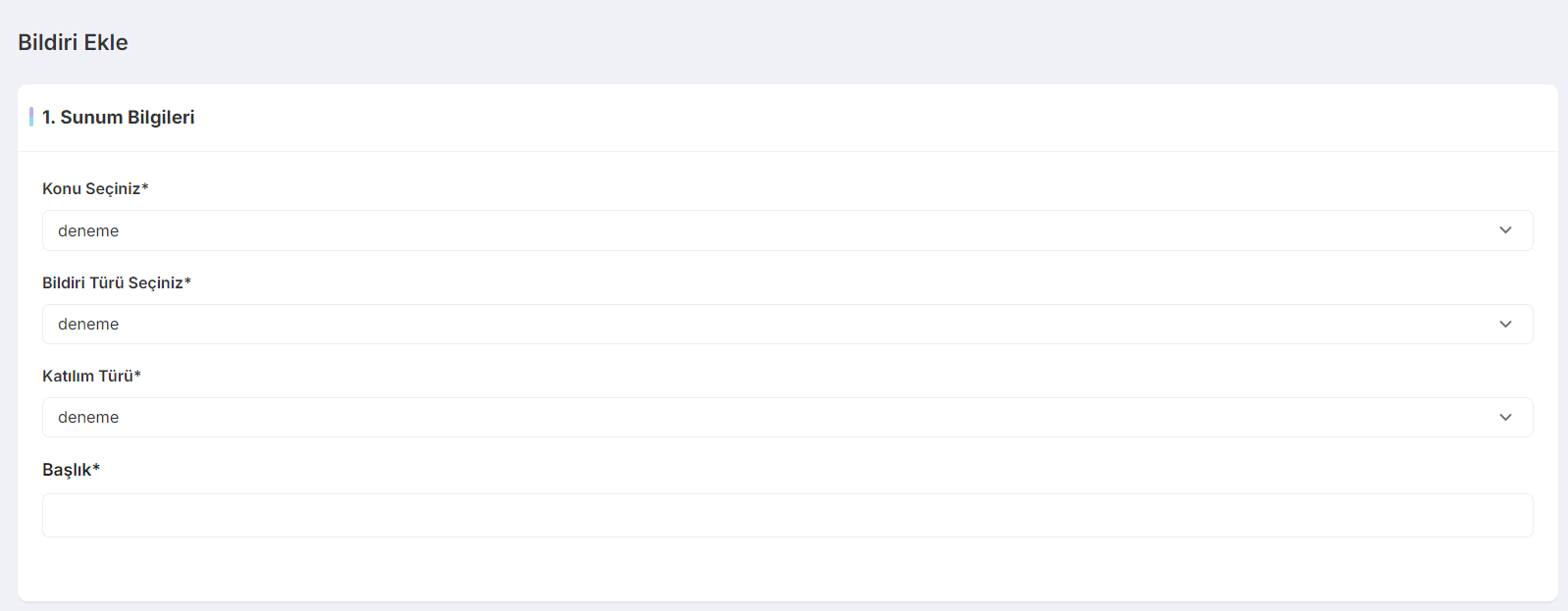
When you click on the Paper Submission section, the following screen will appear first. In this step, you can select the symposium topic, presentation type, and participation type for your submission. You can then complete this step by entering the title of your paper.
 (Click on the image to enlarge)
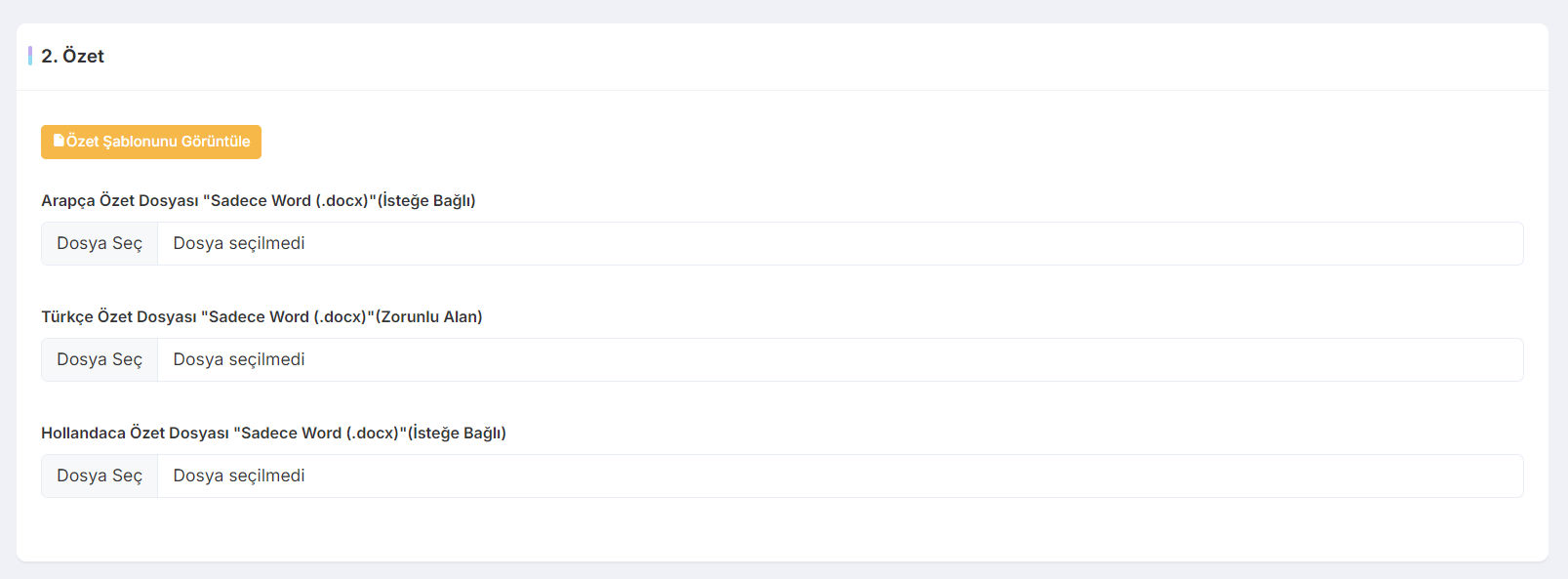
After completing the first screen, you will be directed to the language selection and file upload page. Upload your paper in the required language, and, if you wish, you may also upload versions in other available languages. Once this step is completed, you can proceed to the final stage.
 (Click on the image to enlarge)
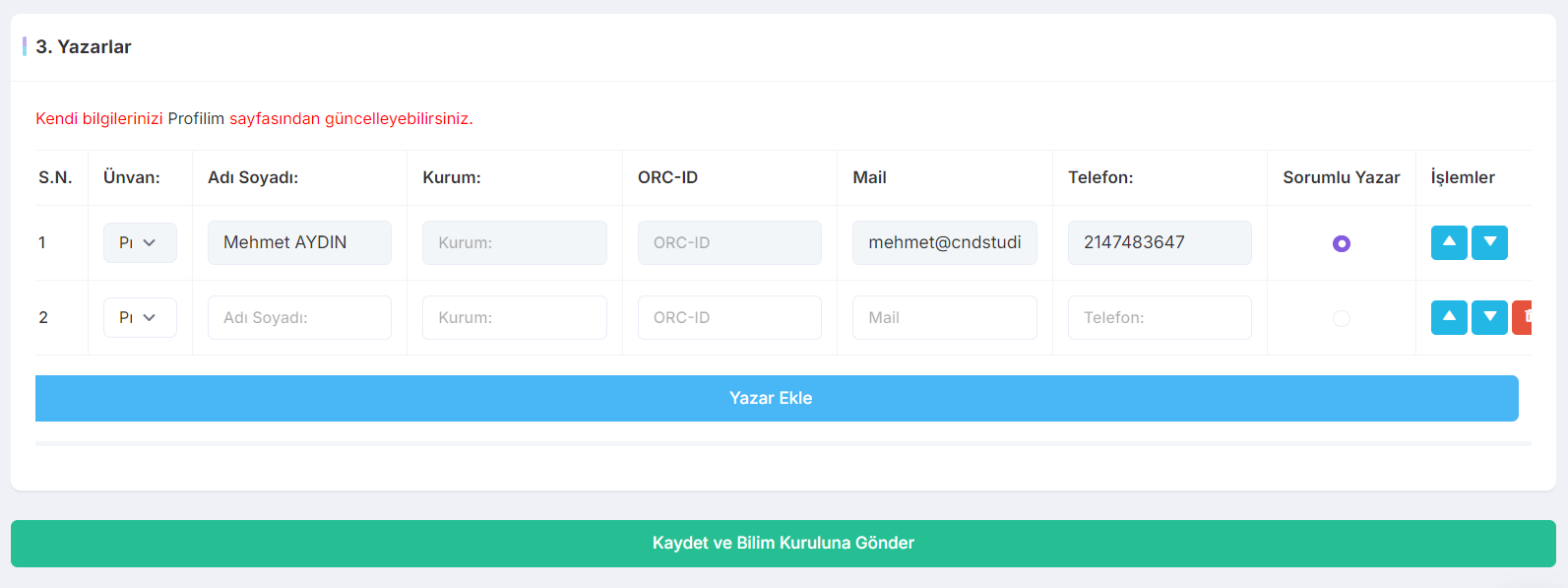
In the final step, you must add at least one author to your submission. You may add or remove authors as needed. After completing all the required information, click the "Save and Submit to the Scientific Committee" button to finalize your submission. Your paper will then be automatically listed under the "My Papers" section.
 (Click on the image to enlarge)
How Can I Participate in the Workshops?
When you access the Workshops page, you will see a list of all available workshops. To join a workshop, simply click the "Register" button next to the workshop of your choice.
If the workshop requires a registration fee, you will be able to participate after completing the payment process. For free workshops, you can register and participate directly without any payment.
How Can I Update My Profile Settings?
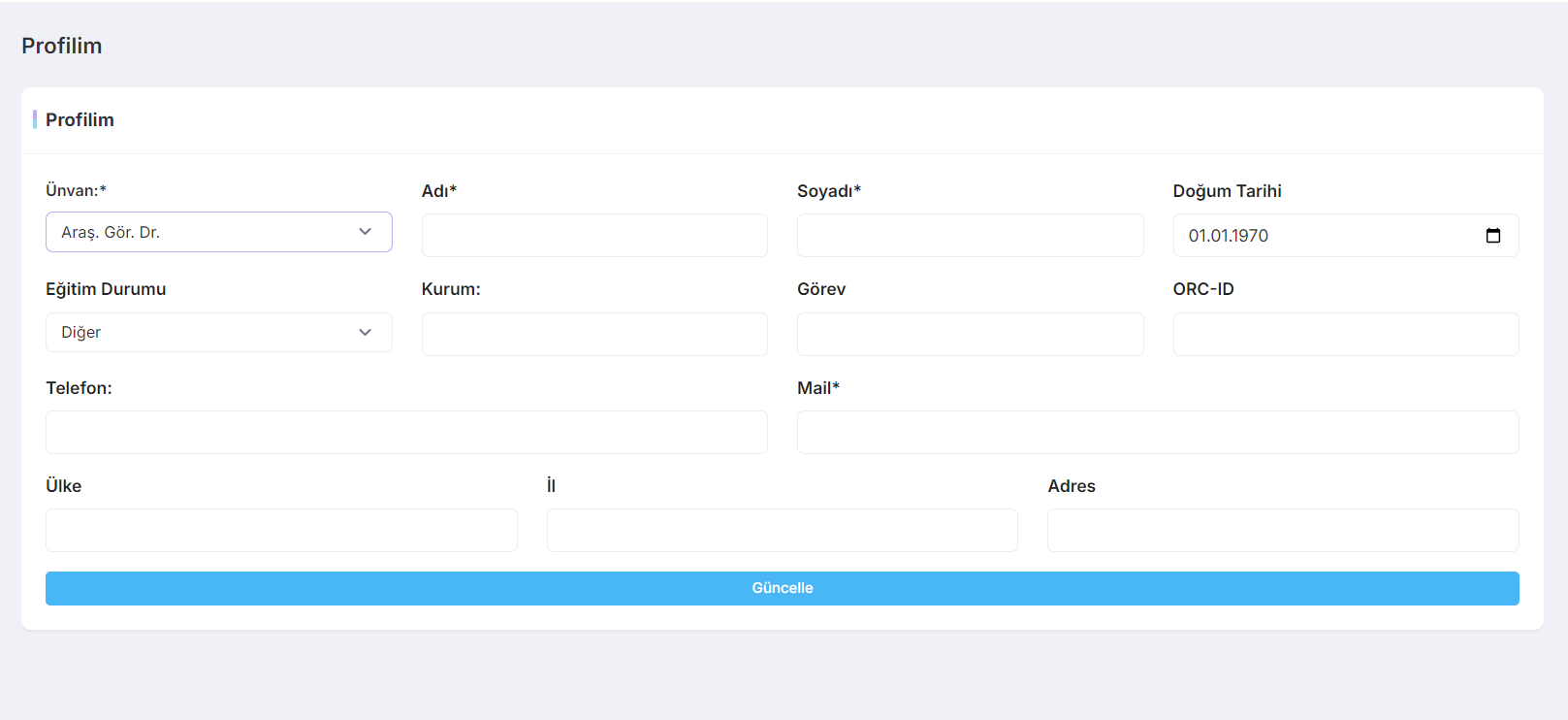
You can update your personal information at any time by visiting the My Profile page. Keeping your profile information up to date will help ensure that your account details remain accurate and current.
 (Click on the image to enlarge)
Payment and Receipt Upload
On the Payments page, you can upload the payment receipt for the registration fee of the symposium you are attending to complete your registration process.
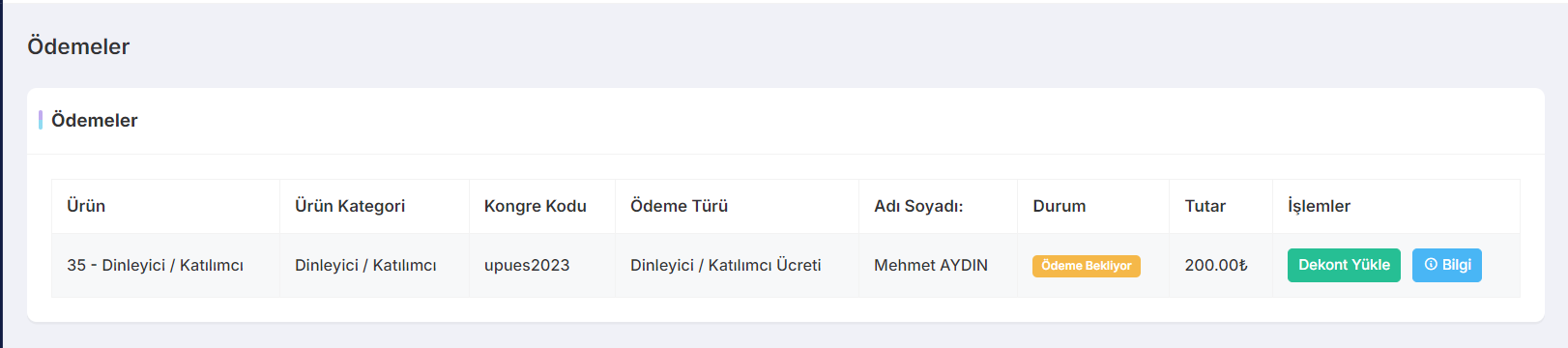 (Click on the image to enlarge)